How to Implement a Purchase Order Approval Workflow
2026-05-03
How to implement a purchase order approval workflow: design the approval matrix and value thresholds, enforce segregation of duties, map the stages, and add three-way match and audit trail.
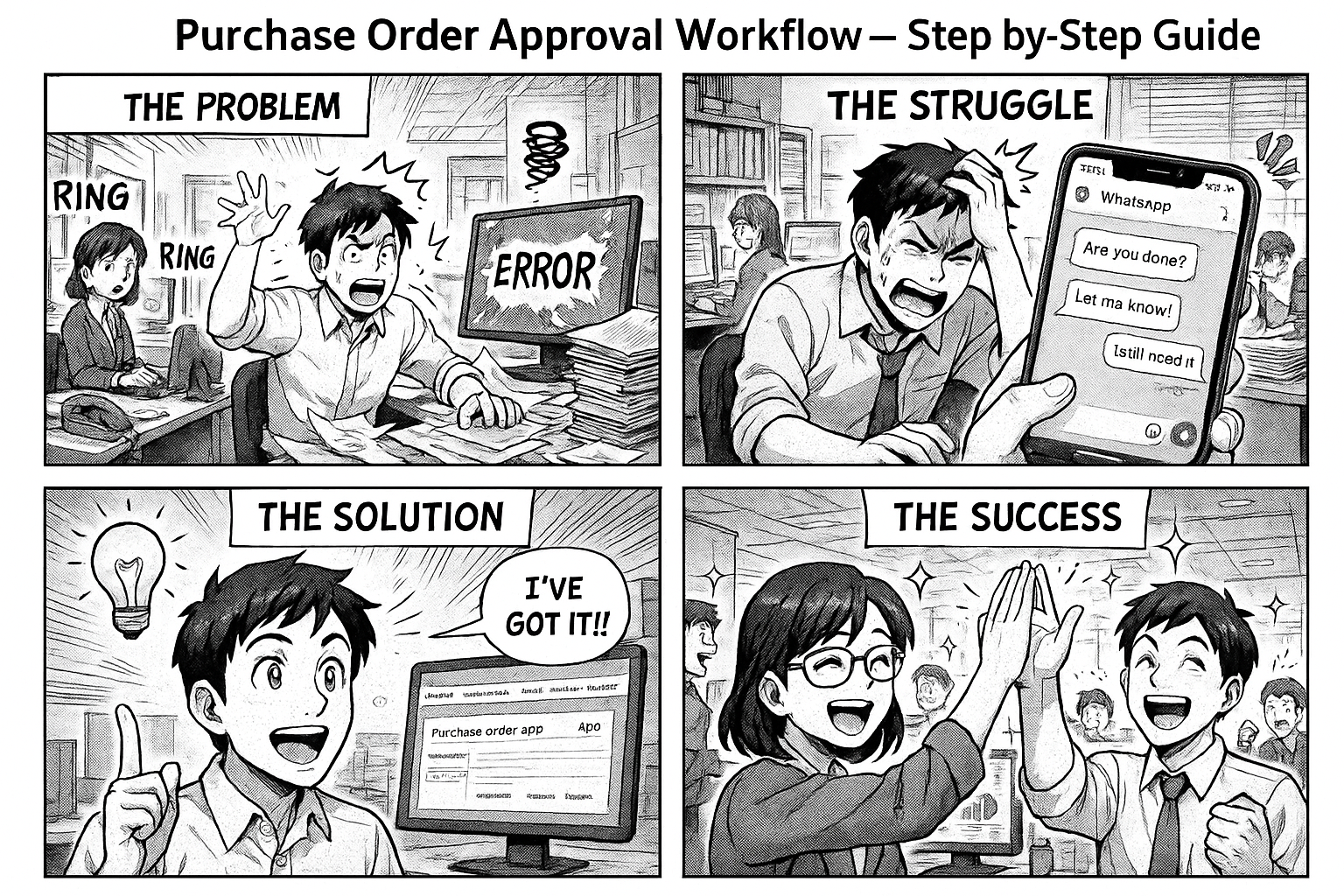
Every manufacturing company processes purchase orders. Few do it efficiently. Most rely on email chains, WhatsApp messages, and Excel sheets that nobody updates — which means slow approvals, maverick spend, and no answer when finance asks who approved an order.
This guide shows you how to implement a purchase order approval workflow end to end: the approval matrix that decides who signs off, the stages an order moves through, the controls that keep it auditable, and how to stand the whole thing up in minutes rather than months.
What a PO approval workflow actually is
A purchase order approval workflow is the defined path a purchase request takes from raised to approved and sent to the vendor — with the right people signing off at the right value, and a record of every step. Done well, it gives you three things email and spreadsheets can't:
- Control — no order goes to a vendor without the right level of approval.
- Speed — each approver sees only what's waiting on them, so orders don't stall in an inbox.
- Traceability — who approved what, when, and at what amount is recorded automatically.
The two design decisions that matter most when you implement one are the approval matrix (who approves at which value) and segregation of duties (no single person can raise, approve, and receive the same order).
Step 1 — Design your approval matrix
The approval matrix is the heart of the workflow. It maps purchase value to the approver(s) required. A typical manufacturing matrix:
- Up to ₹50,000 — Department Manager
- ₹50,000 – ₹5,00,000 — Department Manager → Plant Head
- ₹5,00,000 – ₹25,00,000 — Plant Head → Finance → Director
- Above ₹25,00,000 — Director → CEO
Decide three things:
- Thresholds — the value bands that trigger each level.
- Sequence — whether approvals are sequential (one after another) or parallel.
- Escalation — what happens if an approver is unavailable (auto-escalate after N days, or a delegate).
Get this on paper first. Everything else is plumbing around it.
Step 2 — Enforce segregation of duties
The person who raises a PO should not be the person who approves it, and ideally not the person who receives the goods. This separation is what stops fraud and error. In practice:
- Requester raises the PO.
- A different role approves it (per the matrix).
- A third role (stores) records receipt.
- A fourth (QC/finance) verifies before payment.
A workflow enforces this by assigning each stage to a different role — the requester literally cannot perform the approval step.
Step 3 — Map the stages
A well-designed PO workflow has five stages:
Stage 1: PO Request
Who: any employee (production supervisor, maintenance head, store keeper).
Fills in: vendor (from approved list), department, PO date and expected delivery date, line items (material, quantity, unit price, total), approver, and a purchase note. A line-items grid lets you add multiple materials in one PO, with totals calculated automatically.
Stage 2: Manager / Matrix Approval
Who: the approver(s) the matrix selects for that value.
Does: reviews details, then Approve (moves on), Reject (closed with reason), or Send Back (returns to requester for changes).
Fills in: approver remarks and approved amount (which may differ from requested). Each approver sees only the POs assigned to them — no digging through shared inboxes.
Stage 3: Sent to Vendor
Who: purchase executive.
Does: sends the PO to the vendor, records the sent date, tracks acknowledgment, updates if the delivery date changes. If the expected delivery date passes with no receipt, the dashboard flags it in red.
Stage 4: Material Received
Who: store keeper / warehouse.
Does: logs what was received, checks condition (Good / Damaged / Partial), records invoice number and amount. The invoice amount is compared against the approved amount, so any discrepancy is visible immediately.
Stage 5: QC Check
Who: quality control officer.
Does: tests the material and marks Approved / Rejected / Conditionally Approved. Rejected material loops back to "Sent to Vendor" for reorder automatically.
The approval flowchart
  +-----------------------------+
  |  PO Request (any employee)   |
  +--------------+--------------+
                 |
                 v  Submit for approval
  +-----------------------------+
  |  Matrix Approval             |
  |  (level set by PO value)     |
  +---+---------+-----------+----+
      |         |           |
   Approve  Send Back     Reject
      |         |           |
      |         v           v
      |   back to       Rejected
      |   PO Request    (closed)
      v
  +-----------------------------+
  |  Sent to Vendor              |
  +--------------+--------------+
                 |  Material received
                 v
  +-----------------------------+
  |  Material Received (stores)  |
  +--------------+--------------+
                 |  Send to QC
                 v
  +-----------------------------+
  |  QC Check                    |
  +---+---------------------+----+
      |                     |
   Accept            Reject & Reorder
      |                     |
      v                     v
  Completed          back to Sent to Vendor
The flow isn't linear — it handles real-world paths: revisions (Send Back), rejections, QC failures, and reorder loops. Every transition is recorded.
Step 4 — Build in the controls
Three controls turn a workflow from "nice form" into "audit-ready":
- Three-way match — the PO, the goods receipt (GRN), and the vendor invoice must agree on quantity and amount before payment. The receipt stage comparing invoice vs approved amount is this match in action.
- Value-band routing — the PO's total automatically decides which approval level it needs, so a ₹2,00,000 order can't slip through on a single manager's nod.
- Audit trail — every stage transition is stamped with who, what, and when, so a "who approved this?" question is a search, not an investigation.
The master data
Three master tables power the workflow:
- VENDOR — vendorName, contactPerson, phone, email, address, city (pre-populated with approved vendors; new ones added as needed).
- MATERIAL — your catalogue of purchased materials, referenced in PO line items.
- DEPARTMENT — Production, Maintenance, QC, Warehouse, Administration — used to track department-wise spend.
What the dashboard shows
Once POs flow, you get automatic visibility:
- KPI cards — active POs, pending approval, sent to vendor, delayed beyond lead time (red alert), received pending QC, completed and rejected counts.
- Charts — spend by department, spend by vendor, monthly PO trend.
- Tables — delayed materials, vendor performance (PO count, spend, avg delivery days, delayed count), top materials ordered.
Every number is clickable — click a vendor to see their POs, click a delayed entry to open the actual order. (More on what to surface in what a CEO dashboard should actually show you.)
Why this beats email and spreadsheets
A PO approval workflow directly fixes the failures of ad-hoc procurement: orders that take five days to approve when they should take five hours, overdue POs that delay production, and the hidden data-entry cost of one purchase order. The workflow is what cuts the PO cycle time from 12 days to 4.
Setting it up in Flobri
Option A — describe it (30 seconds). In the workflow builder, type:
"Purchase order process with vendor selection, material line items, value-based manager approval, vendor dispatch tracking, material receipt, and quality check."
Flobri generates the stages, approval routing, line-item grid, and dashboard automatically.
Option B — use the template. Select "Purchase & Procurement" from the template library; it's ready to deploy.
Either way you go from zero to live PO tracking in under 10 minutes.
Frequently Asked Questions
What is a purchase order approval workflow?
It's the defined path a purchase order follows from request to approval and dispatch, routing each order to the right approver based on its value, and recording every step for audit.
What is a PO approval matrix?
A table mapping purchase value bands to the approver(s) required — e.g. a manager up to ₹50,000, manager plus plant head above that, and director-level above ₹5,00,000. It's the core design decision when implementing PO approvals.
What is three-way matching?
Verifying that the purchase order, the goods receipt note (GRN), and the vendor invoice all agree on quantity and amount before the invoice is paid. It prevents overbilling and receiving errors.
How do you implement segregation of duties in procurement?
Assign raising, approving, receiving, and payment-verification to different roles, so no single person controls a purchase end to end. A stage-based workflow enforces it by role.
How long does it take to set up a PO approval workflow?
With a workflow platform, under 10 minutes — describe the process or start from a procurement template, then deploy. Building it in a spreadsheet or custom system takes far longer and lacks the audit trail.
Try it
Go to insights.flobri.com/build and set up your purchase order workflow. No credit card, no demo call, no 30-day evaluation — just describe and deploy.
Flobri is a workflow automation platform for manufacturing companies. Track purchase orders, production, quality, maintenance, and HR — all from process descriptions, no coding required.
Related guides
- Purchase Order Format for Manufacturing Companies — Free Template + Automation
- Material Requisition Format: Free Excel Template (Indent Slip) with Example
- GRN Format (Goods Receipt Note) — Free Excel Template + Example
- Delivery Challan Format: Free Excel Template (GST, with Example)
- Overdue Purchase Orders: Stop Delivery Delays Early